
Simple school transport management for taxi and private hire companies.
Manage recurring school runs, passengers, drivers, assistants, cancellations, vehicles and reports in one clear system.
Built for GDPR-compliant records, clear permissions and safer day-to-day transport admin.
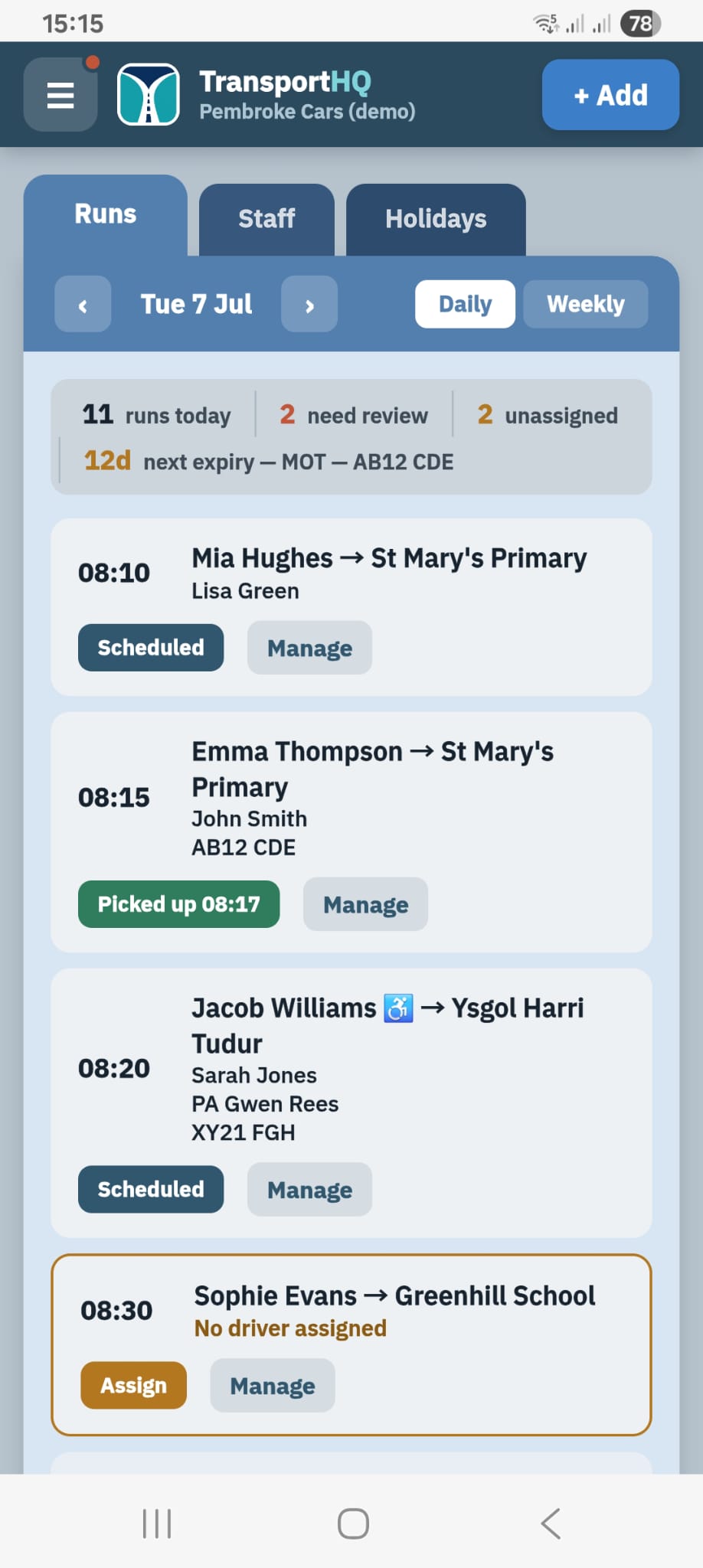
No more chasing school run updates across messages, paper notes and spreadsheets.
School transport changes quickly. Passengers change days, drivers swap vehicles, assistants are needed, and cancellations need a clear record. TransportHQ keeps the working day organised from the office and on your phone whilst on the move.
- See today’s runs, unassigned journeys and review items at a glance.
- Keep recurring passenger schedules and daily changes in one place.
- Record cancellations, evidence and billable decisions without hunting through messages.
- Give drivers a simple mobile view for pickups, drop-offs, maps and cancellations.
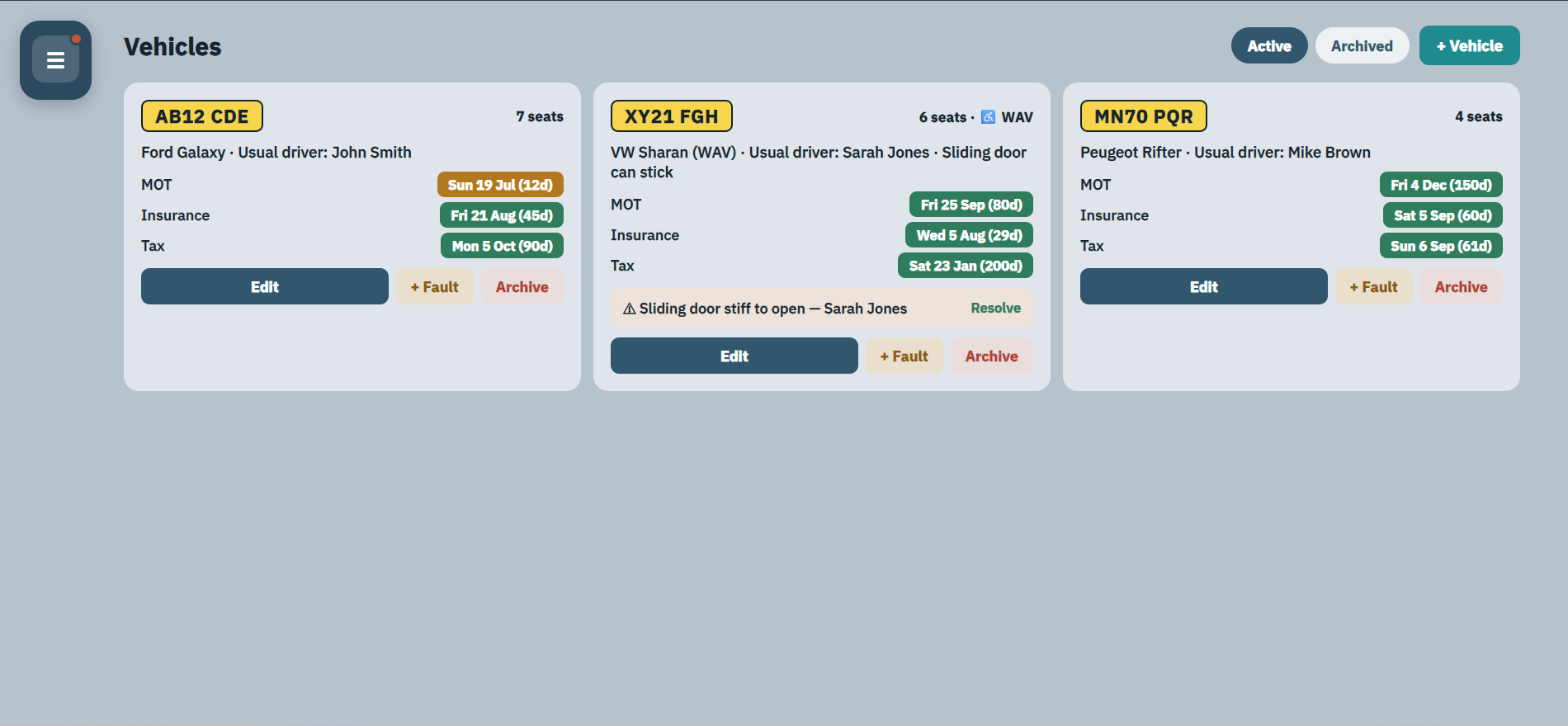
- Track vehicles, MOT, insurance, tax dates and reported faults alongside the daily work.
- Export run and cancellation information when the office needs clear records.
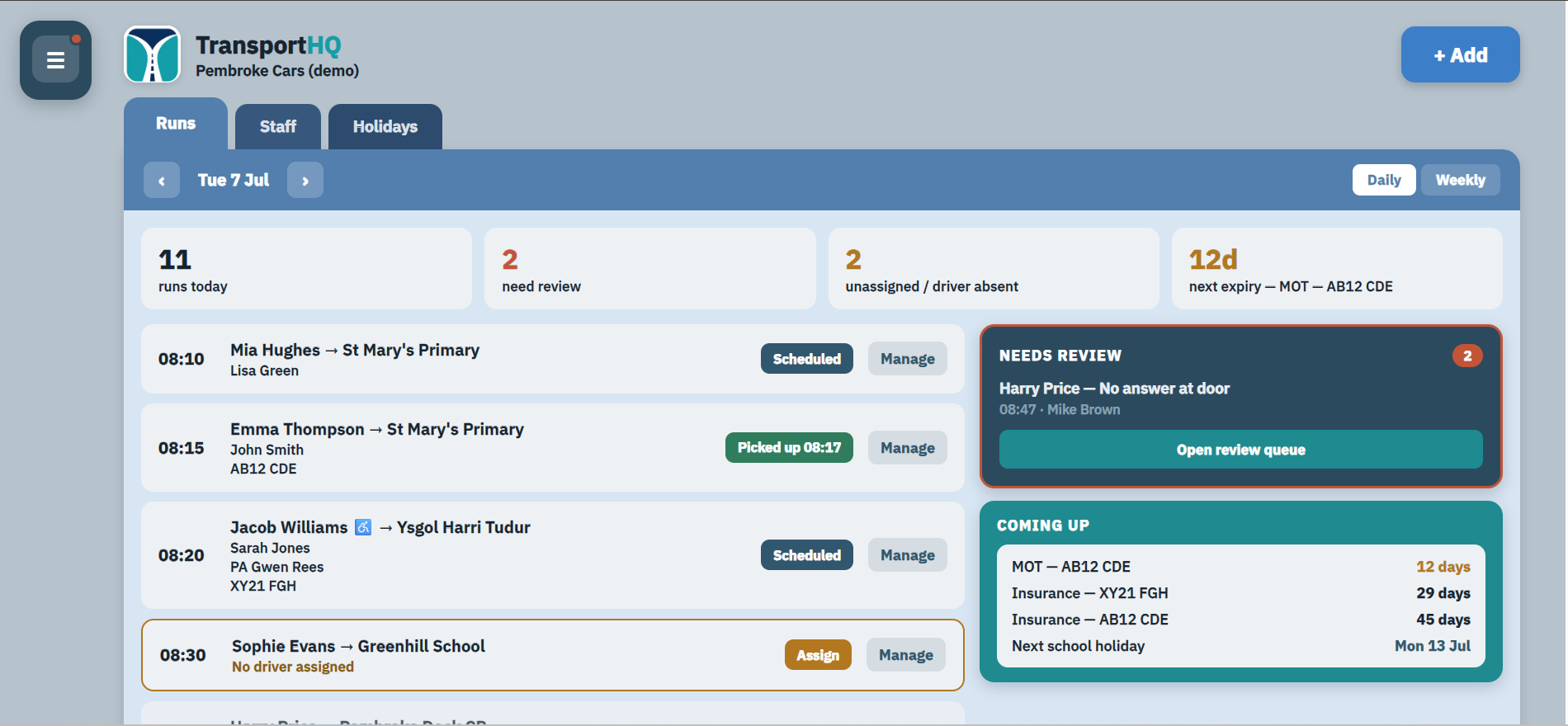
One place for the daily transport admin.
Designed around the practical work small operators do every day.
View pickups, returns, assigned drivers, passenger assistants, vehicles and runs needing attention.
Manage recurring school journeys, different days, pickup and return times, and assistance needs.
Spot unassigned runs and make changes without losing sight of the day’s work.
Capture cancellation reasons, photo evidence where needed, and billable or not billable decisions.
Track MOT, insurance, tax, assigned vehicles, notes and reported faults.
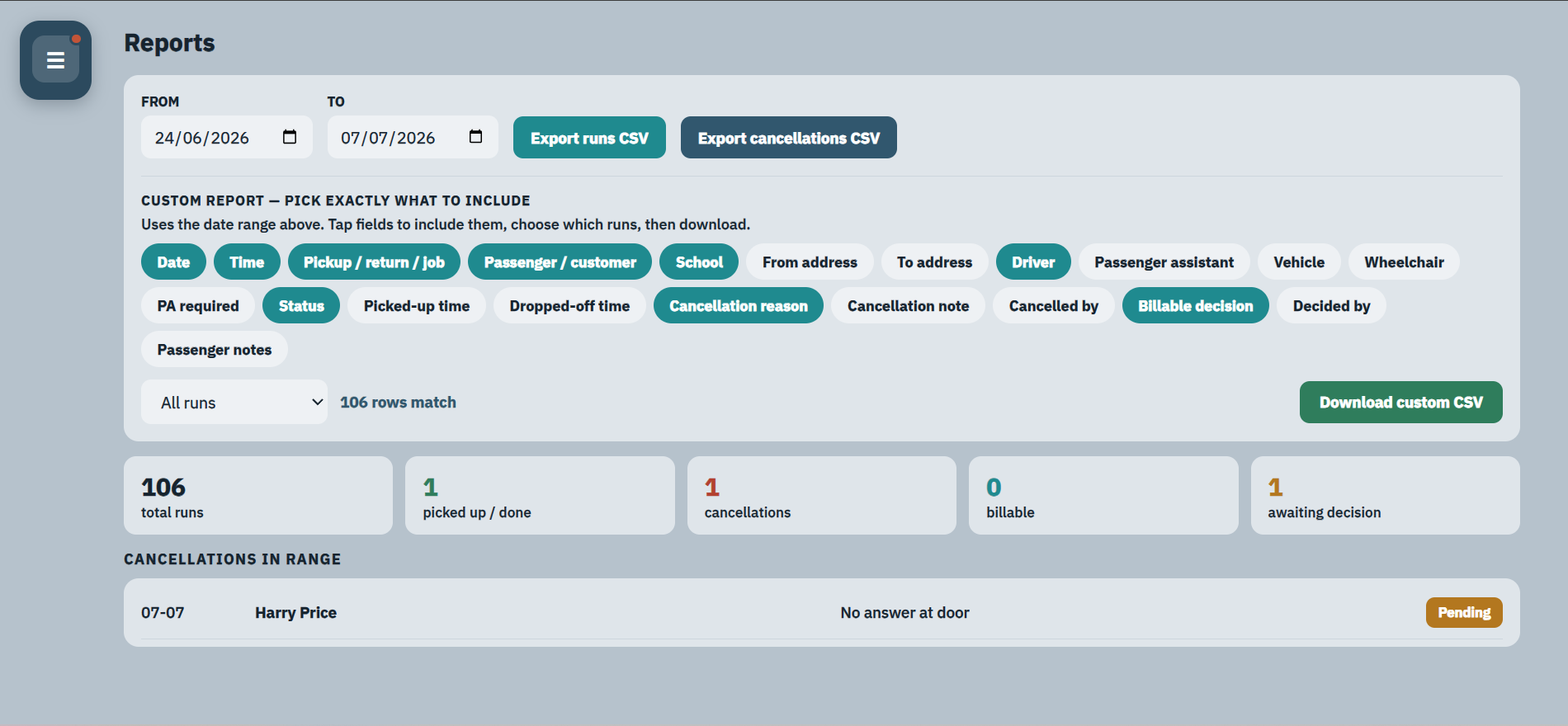
Export run and cancellation information when the office needs a record.
Fully customisable reports.
Choose the exact fields you need, filter the runs, then export clear records for cancellations, billable decisions, drivers, assistants, vehicles and passenger notes.
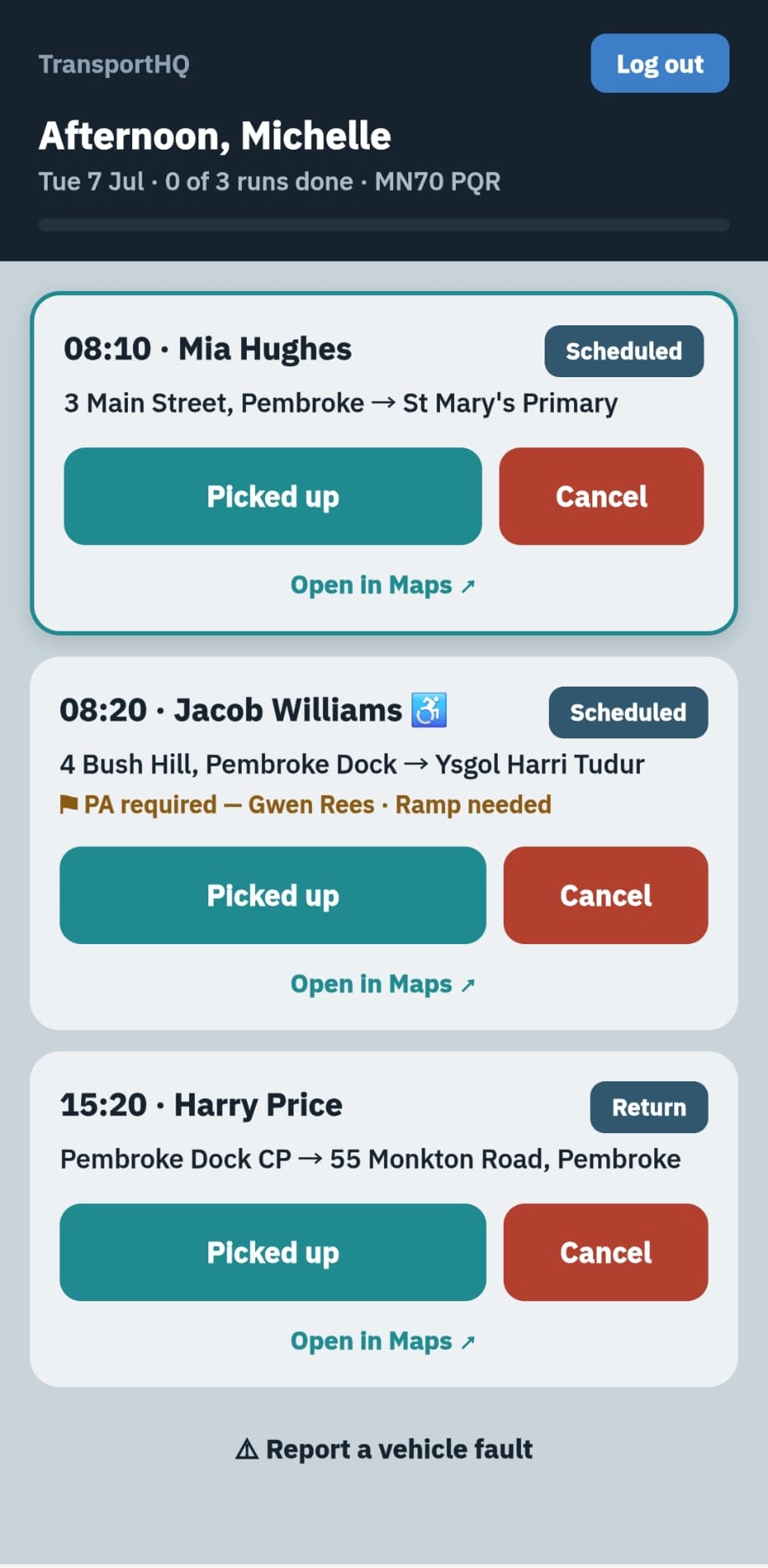
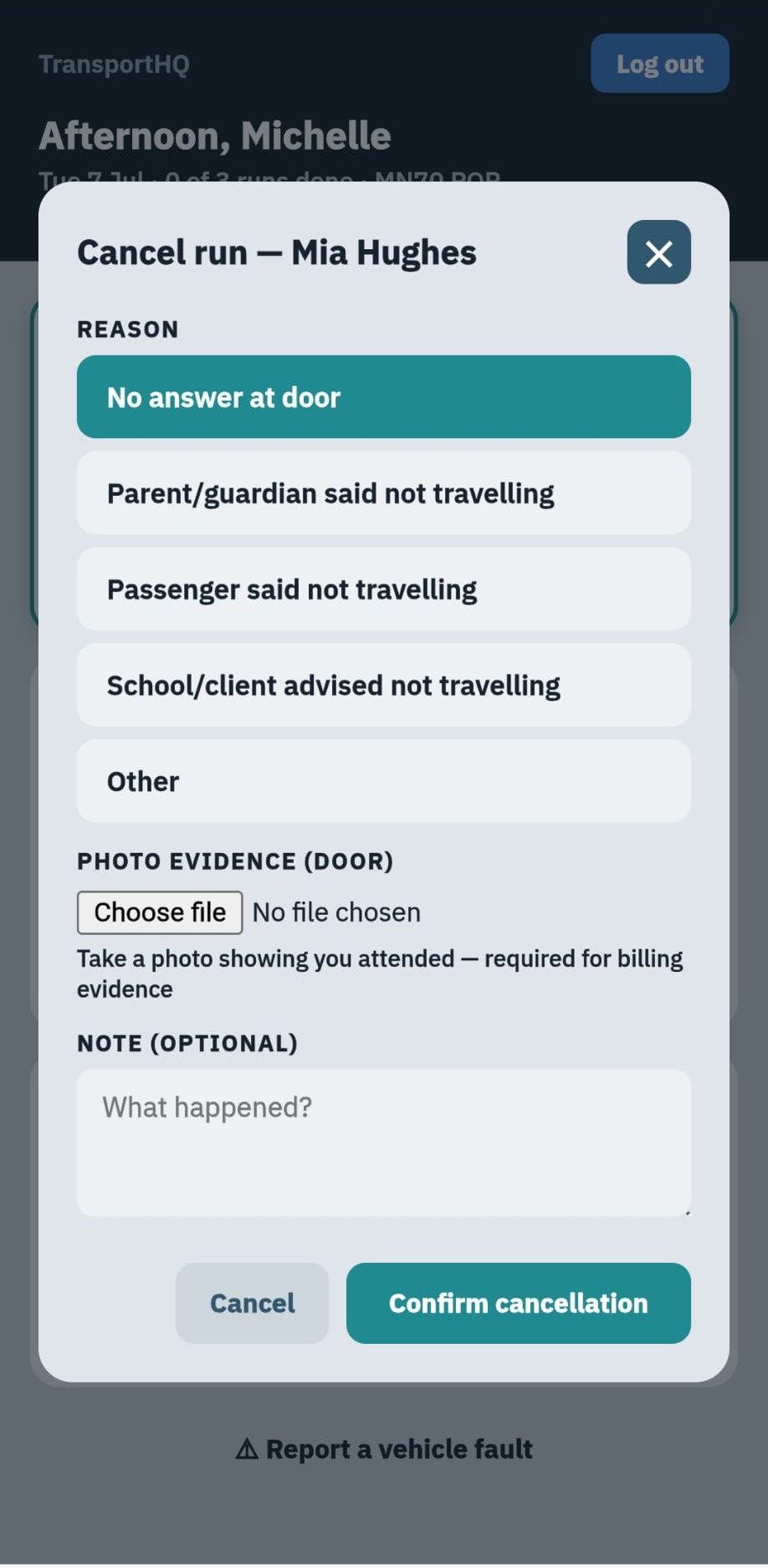
Simple enough for drivers on the move.
Drivers and passenger assistants need quick actions, not extra admin. TransportHQ keeps the driver view focused on the next runs, pickup and drop-off actions, cancellations, maps and vehicle fault reporting.
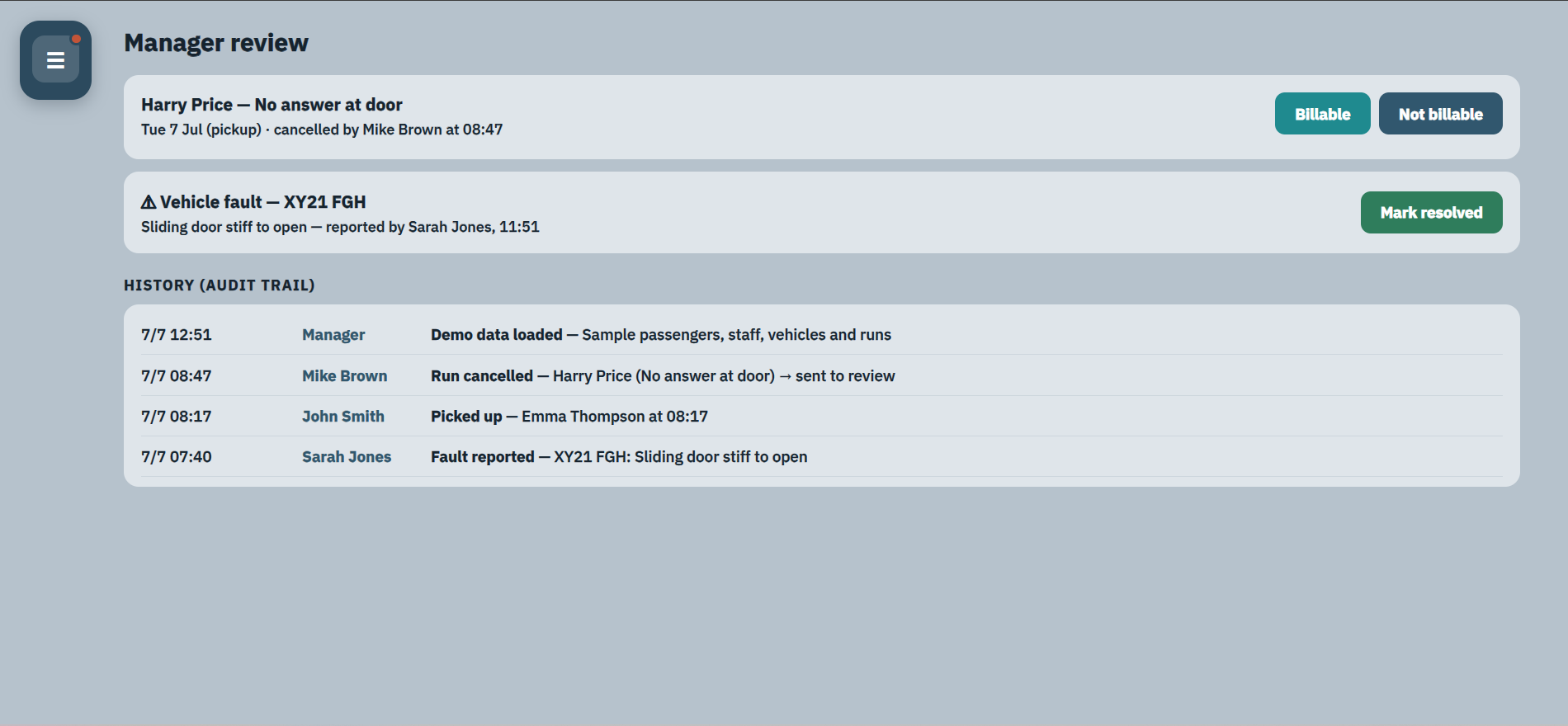
Evidence and records when something changes.
Cancellations, vehicle faults and run updates can be reviewed by the manager, with an audit trail showing who did what and when.
Built around the real day-to-day work of school transport.
TransportHQ is designed for operators who understand the pressure of school runs, SEND transport, council contracts, recurring journeys and last-minute changes.
Want to see whether TransportHQ fits your school transport work?
TransportHQ is currently onboarding a small number of founder taxi and private hire operators who would like to help shape the platform. Founder operators receive free setup and an early adopter monthly rate during the first launch period. Email hello@transporthq.co.uk or request a call back.